Checkout
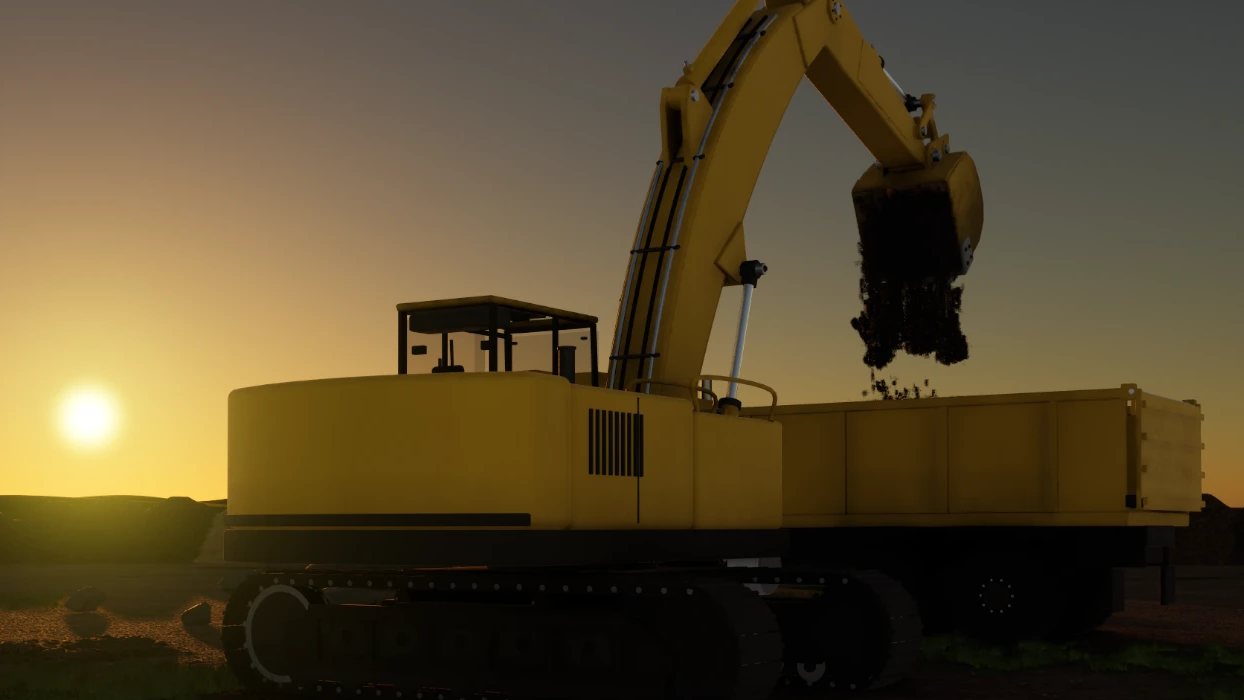
Dirt Digger
Real dirt. Real gold.
$19.99
Early access: the game isn't finished. Expect missing features, bugs and changes as it's built; every base-game update is included. What early access means.
Controller recommended: the game is built for an Xbox or PC-compatible controller. Keyboard play is possible but quite cumbersome. Dual joystick support is coming soon.
Installing on Windows: Expect a Windows SmartScreen notice when you install the launcher. See what it looks like.
Check your PC meets the requirements- • Placer gold mining: strip the overburden, dig the pay gravel and run it through the wash plant
- • A much bigger map: a 5-mile claim of boreal valley, built from real placer geology
- • Physics-driven hydraulic machines: excavator, wheel loader, dozer, dump truck
- • Layered soil that is dug, carried and dumped, with volume conserved
- • Rivers and creeks that flow, flood your pit and carry silt
- • Gold mined and recovered tracked on your Zirtola profile
- • Gamepad first, keyboard supported
- • Windows 10/11 PC game, installed and updated through the Zirtola Launcher.
- • Every update to the base game, free.
- • Your licence moves with you: play on one PC at a time, and switch to another whenever you like by deactivating the old one (from the launcher or your account page).
- • If something's wrong, contact us within 7 days of purchase for a refund. A refunded game is removed from your library.
Heads up: Windows will show a security notice when you installThe first time you run the launcher installer, Windows SmartScreen shows a blue “Windows protected your PC” screen with “Unknown publisher”. Click More info, then Run anyway. Here's what it looks like and why.Show the install guideHide the install guide
Step 1
Download the installer
Sign in on zirtola.com with the account that owns your game and click Download Launcher. Your browser saves Zirtola.Launcher_0.2.1_x64-setup.exe and lists it in its downloads. Click Open file, or open it from your Downloads folder.
Some browsers say a new file “isn't commonly downloaded”. If it came from the download button on zirtola.com, choose Keep.
Illustration of step 1, not a screenshot. Your screen may look slightly different. Step 2
If Windows shows “Windows protected your PC”, click More info
At first this blue screen only offers Don't run. Click More info to see which app it is and who published it.
Illustration of step 2, not a screenshot. Your screen may look slightly different. Step 3
Check the details, then click Run anyway
App should read Zirtola.Launcher_0.2.1_x64-setup.exe. Publisher shows Unknown publisher for now, because our releases aren't code-signed yet. If the app name matches, click Run anyway.
If the app name is different, or the notice names a threat, click Don't run and contact us.
Illustration of step 3, not a screenshot. Your screen may look slightly different. Step 4
The installer starts
Zirtola Launcher Setup opens. Click Next, keep the suggested folder, then Install. It installs for your Windows account only, so it doesn't normally ask for administrator rights. Click Finish to open the launcher, then sign in with your Zirtola account: your games are there.
Illustration of step 4, not a screenshot. Your screen may look slightly different.
Why Windows shows this
Windows SmartScreen warns about software from publishers it hasn't seen many downloads from yet. Zirtola is a new independent studio, so our launcher is new to it.
The notice is about how familiar the publisher is to Windows. It isn't a sign that anything harmful was found.
What we're doing about it
We're getting our code-signing certificate through Microsoft's own signing service.
Once our releases are signed, the notice will show our verified name and fade away as more players install. SmartScreen builds that trust over a few weeks of downloads, so it won't vanish the day the certificate arrives.
Staying safe
- Only download the launcher with the Download Launcher button on zirtola.com, signed in with the account that owns your game. We don't publish it anywhere else.
- Every release has a SHA-256 checksum, shown next to the download button. To check your copy, open PowerShell and compare the Hash it prints with ours. They must match exactly.
- We will never ask you to turn off SmartScreen, Windows Security or your antivirus. If anyone does, it isn't us. If your antivirus blocks the installer, leave it blocked and contact us.
Zirtola.Launcher_0.2.1_x64-setup.exe · version 0.2.1 · 3.7 MB
SHA-256
25452f26665b45b1af8da067c233f93238b295ef443c5fb1725d5ca1d44e75c0Check it in PowerShell
Get-FileHash "$HOME\Downloads\Zirtola.Launcher_0.2.1_x64-setup.exe" -Algorithm SHA256The Hash it prints must match the SHA-256 above exactly.
Something look different?
If anything looks different from these pictures, don't run the installer. Reply to any email from us (your receipt, for example) and we'll help.