You'll need: Nothing: the drone camera works from anywhere, on foot or in any machine.
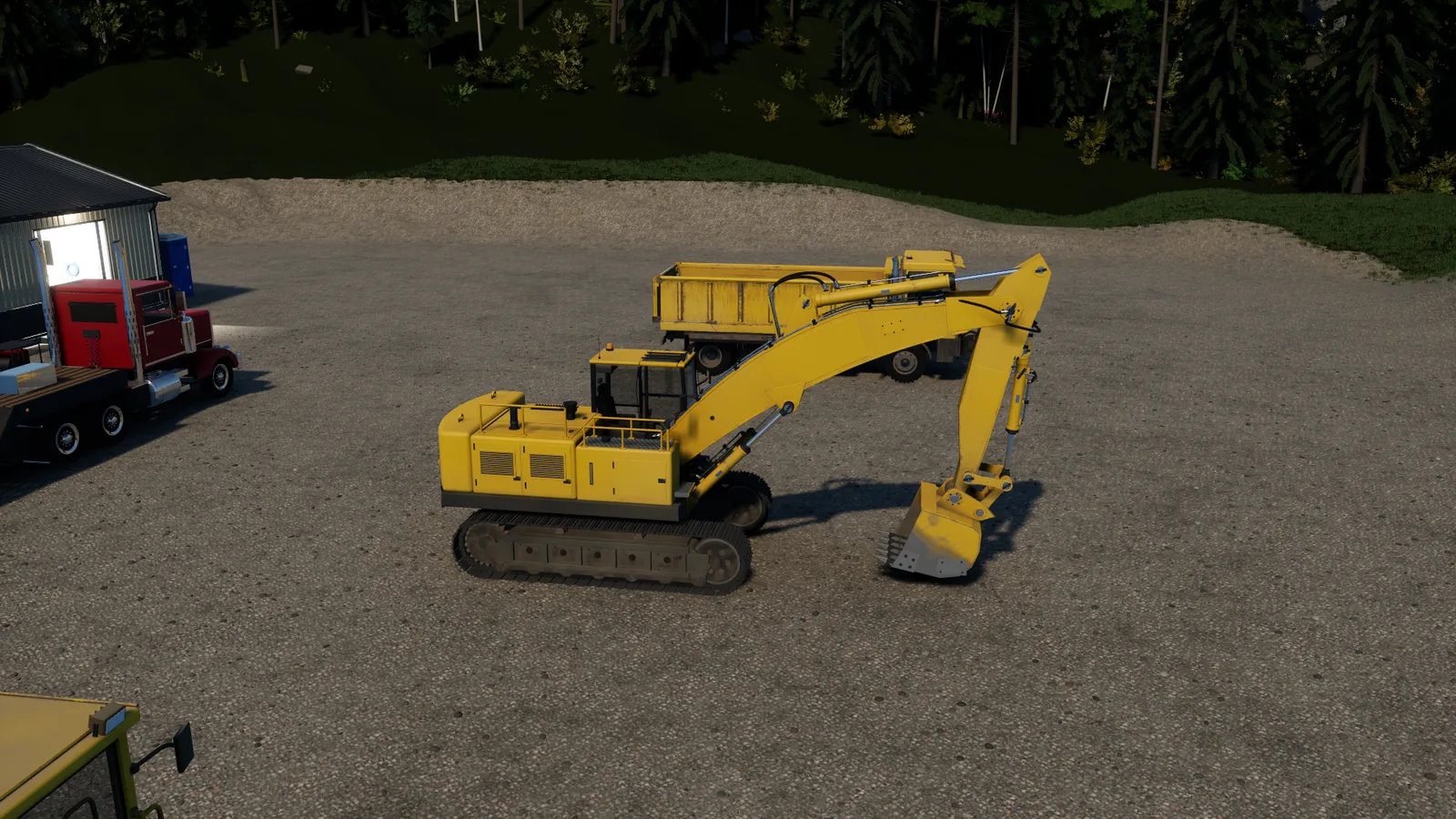
The drone camera is a free camera you can put up from anywhere: on foot, in a cab, halfway through a push. It starts where your camera is and flies like a camera drone while everything else carries on as it was. Nothing is moved and nothing is possessed: your machine just stops hearing the controls until you come back.
Use it to look over the site, check a pit from above, line up a picture, or watch a machine work. You can also lock it in the air and drive your machine from that view.
Step 1: Put the drone up
Press F8, or click both sticks together on the controller. The view lifts off from where it was and a small readout appears at the top left with the drone's speed, height and mode. Press the same again to come back to where you were.
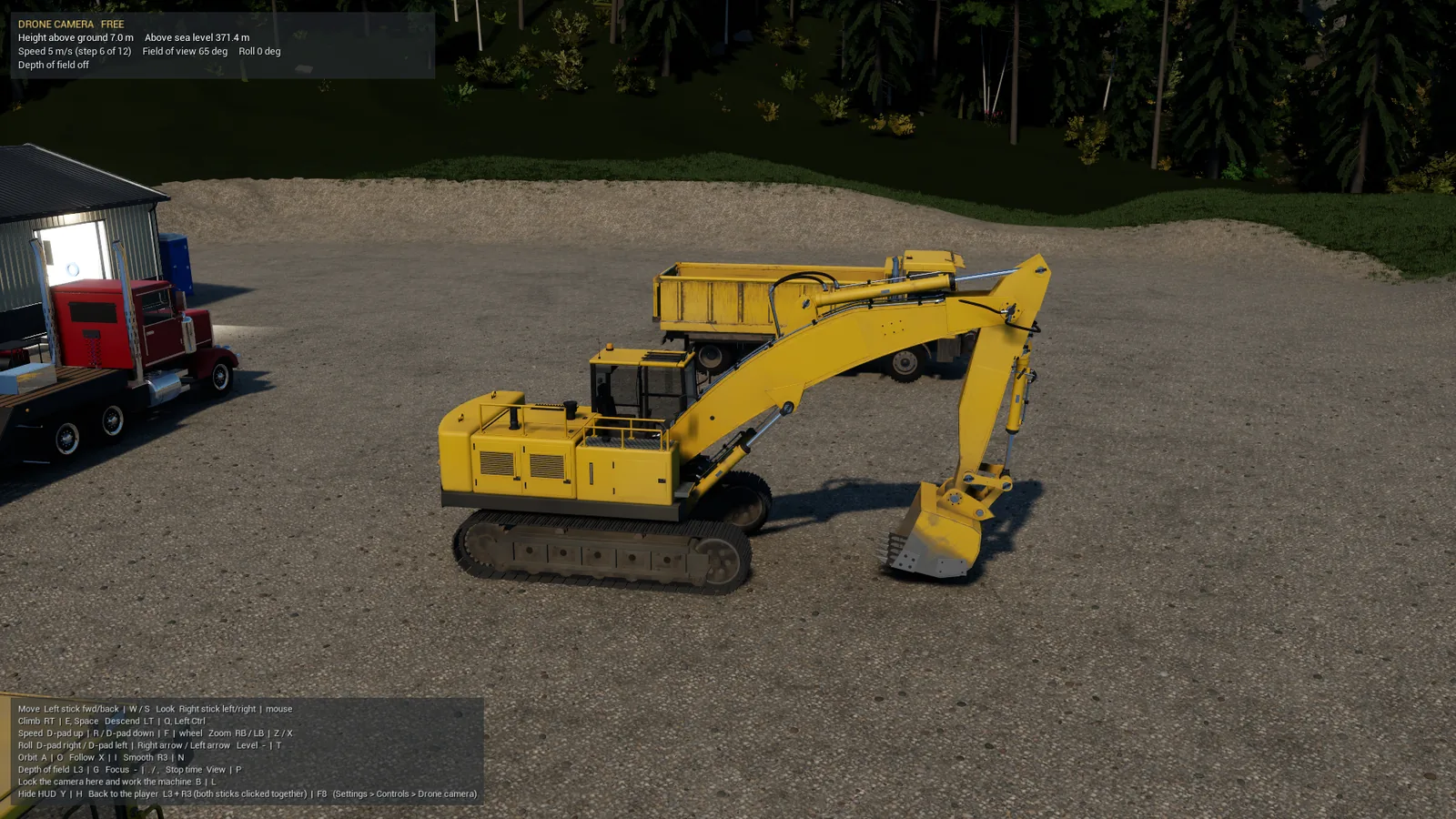
Step 2: Fly it
- Left stick (W A S D) moves over the ground along the way you're facing.
- Right stick (or the mouse) looks round.
- RT / LT (E / Q) climb and descend.
- D-pad up / down (R / F, or the mouse wheel) step the speed up and down, from a slow creep to fast enough to cross the claim. It eases in and out, so short taps give smooth moves.
The drone keeps at least a metre above the ground and pushes itself out of buildings and machines, so you can't fly it through a wall. It stays within 2 km of you and 500 m above the ground, and the site is drawn in full detail round the drone as it would be round you.
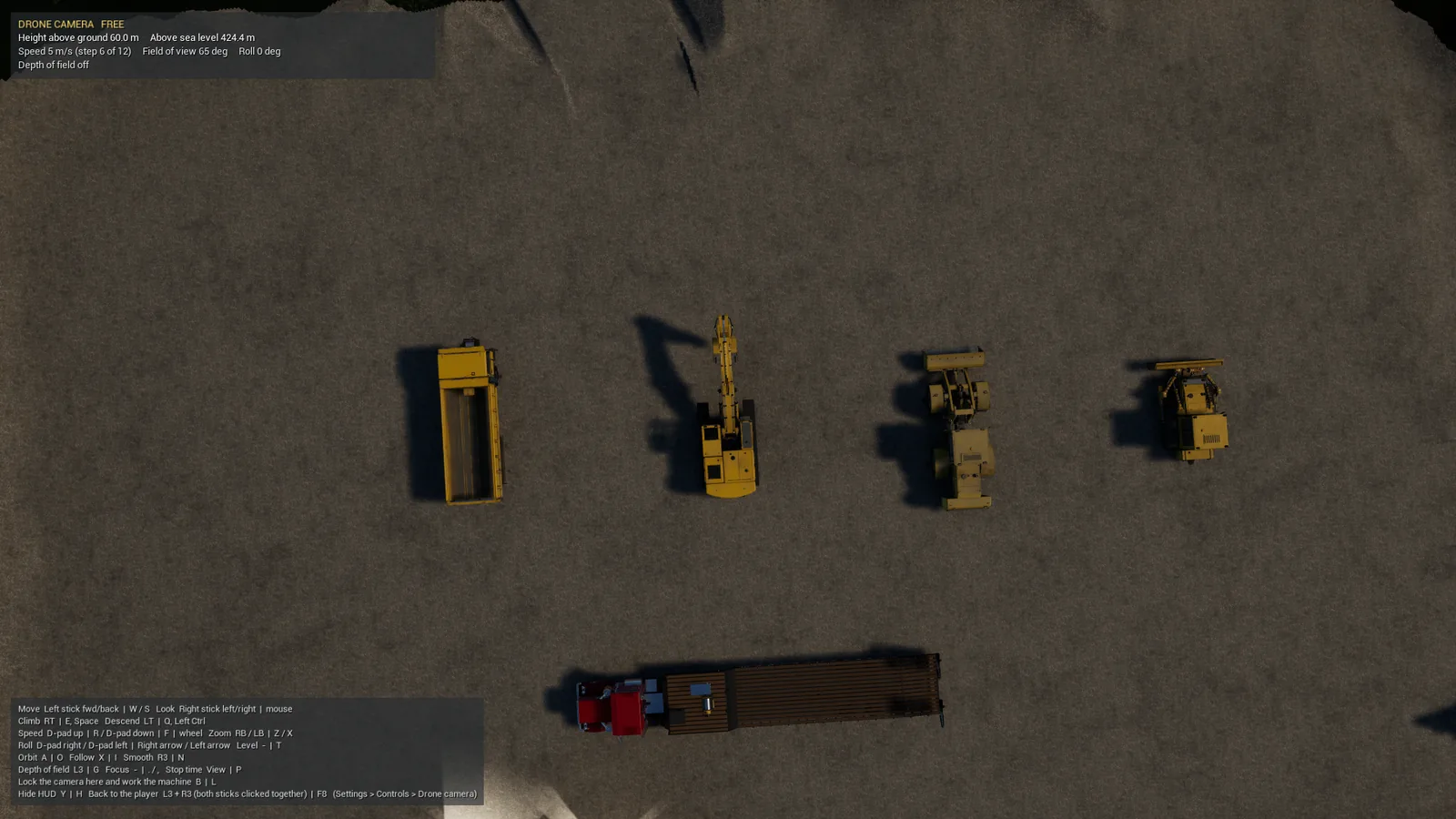
Step 3: Orbit or follow a machine
Point the middle of the view at a machine (or a spot on the ground):
- A (O) orbits it at the distance you're at. The left stick sets how fast it goes round and how far out it is.
- X (I) follows it, keeping the same offset and turning with it as it drives.
Press the same button again to fly freely.
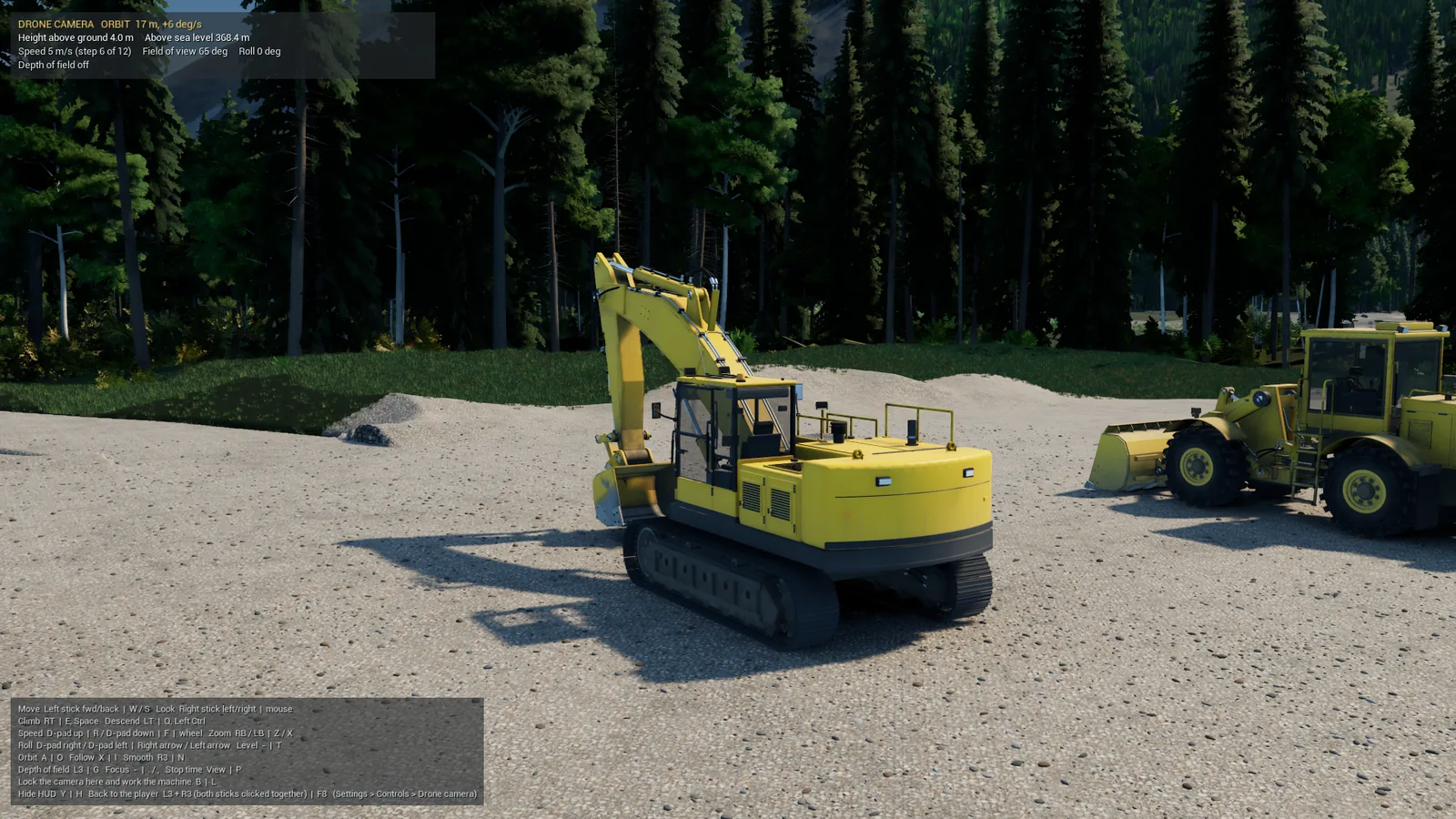
Step 4: Lock it and work your machine from up there
This is the drone's most useful trick. Fly to a spot where you can see what you're doing (over a truck you're loading, beside a blade, above a pit wall), then press B (L). The camera stays where it is (an orbit or a follow carries on) and the controls go back to your machine, with its own HUD back on. A line at the top of the screen says DRONE CAMERA LOCKED.
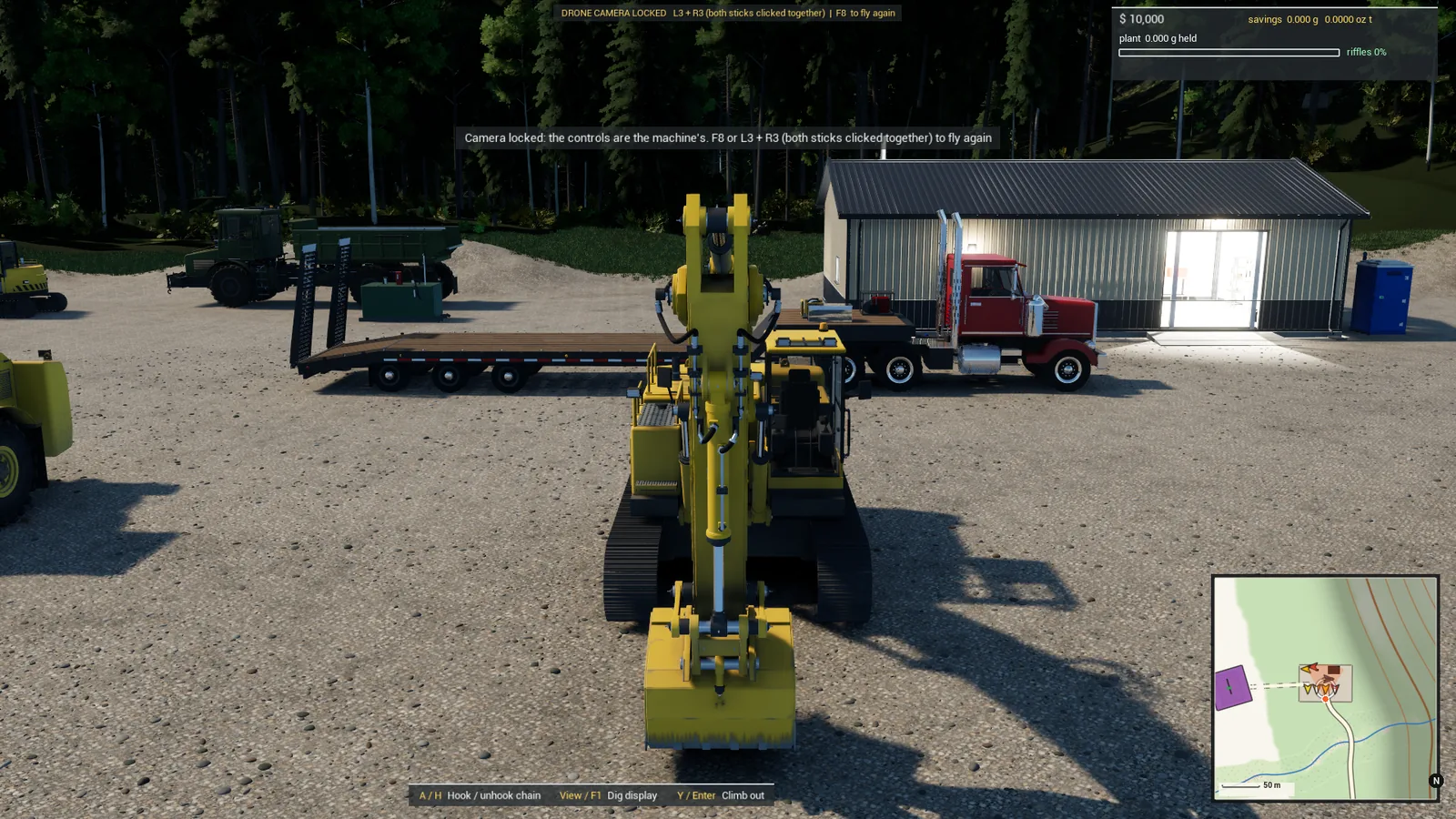
From the locked view:
- Press the on / off (both sticks / F8) once to fly the drone again.
- Press it a second time to bring the camera back to your cab.
Step 5: Take a clean picture
- Y (H) hides the HUD, and shows it again.
- View (P) stops time, so you can move round a moment that's frozen (the pause menu still works on top of it). Press it again to start time.
- RB / LB (Z / X) zoom, D-pad left / right (arrow keys) roll the view, and T on the keyboard rolls it back to level.
- Left stick click (G) steps through depth of field (off, f/1.4, f/2.8, f/5.6) with the focus on what's in the middle of the view. On the keyboard , and . set the focus by hand.
- Right stick click (N) turns on smooth mode, which damps the look for slow, steady pans.
Good to know
- Saving while the drone is up saves you where you are; the drone itself isn't part of the save.
- Every drone control can be changed in Settings > Controls > Drone camera.